
Bring Your Own Data
This tutorial shows one specific workflow for getting a direct download URL from a web data source and giving that URL to the LLM workflow. The example here uses PAD-US data for Alabama from USGS ScienceBase.
This page is not a general catalog-search guide. It is a click-by-click record of the workflow shown in the tutorial directions. Use it when you already know which dataset you want and you need the direct downloadable file URL that the LLM or workflow can use.
If you want more context on how these downloaded sources become comparable inside the workflow, see What Is a Data Harmonizer?.
Example: Getting the download URL
Let's say you want to download PAD data for Alabama from USGS.
First, check if your data is already in the course data catalog or example dataset list. If the dataset you need is already listed there, use the existing catalog entry. If it is not listed, then proceed with the steps below.
Example download page shown in the screenshots:
https://www.sciencebase.gov/catalog/item/6759abcfd34edfeb8710a004
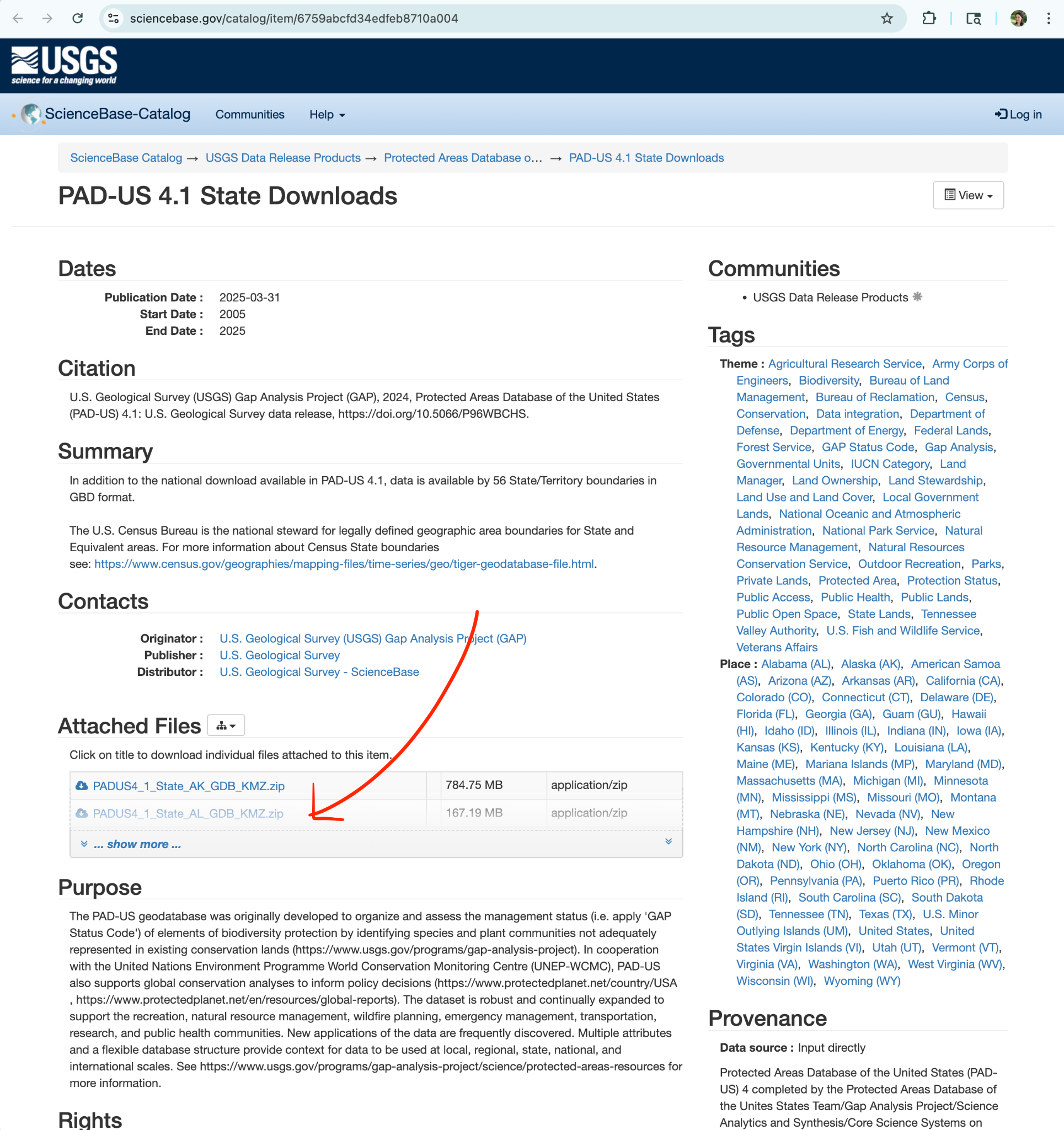
Screenshot: USGS ScienceBase page for PAD-US 4.1 State Downloads.
Step 1: Click on the data you are downloading
On the ScienceBase page, scroll to the Attached Files section.
Click on the data file you are downloading. In this example, the target file is the Alabama PAD-US file:
PADUS4_1_State_AL_GDB_KMZ.zip
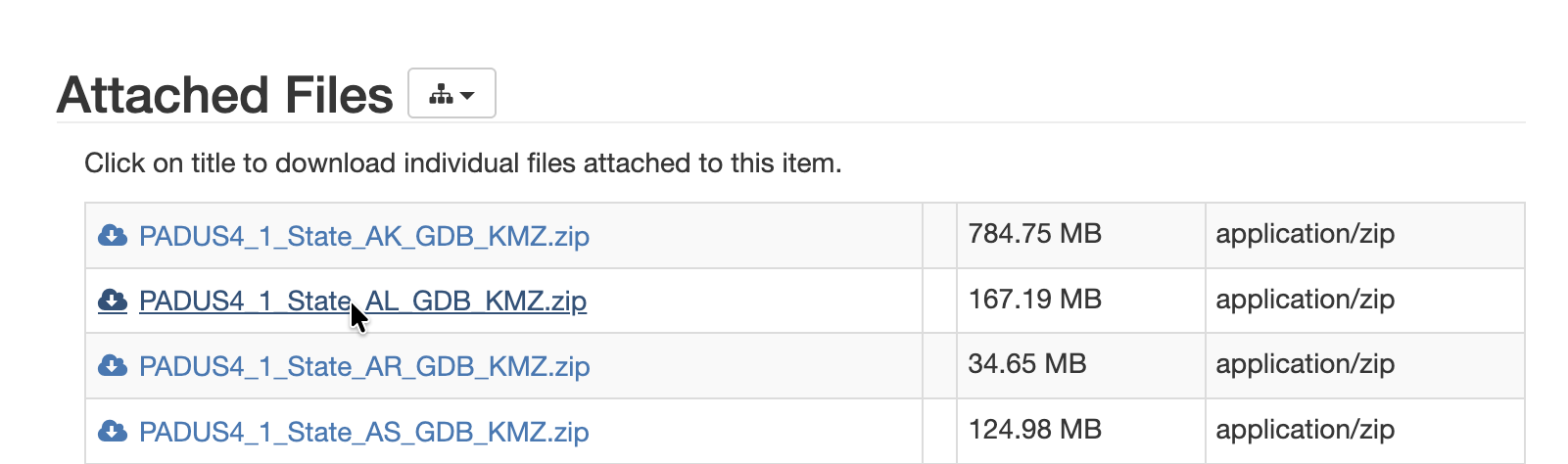
Screenshot: attached files section with the Alabama PAD-US download file.
Step 2: Complete Captcha
After clicking the file, ScienceBase may ask you to complete a captcha.
Complete the captcha and submit it.
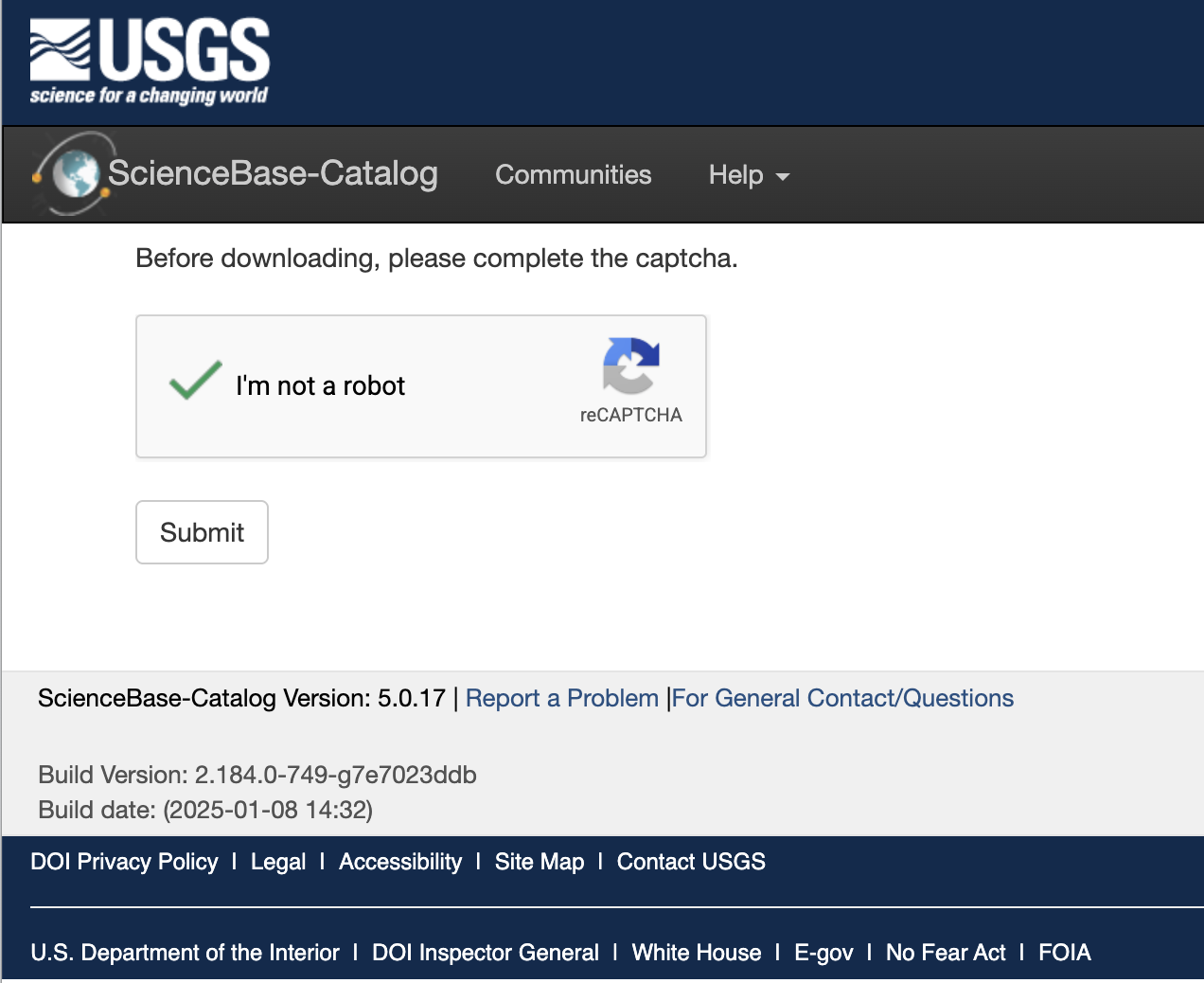
Screenshot: captcha step before downloading the file.
Step 3: Click "Download File"
After the captcha is complete, ScienceBase will show a file transfer page.
Click Download File.
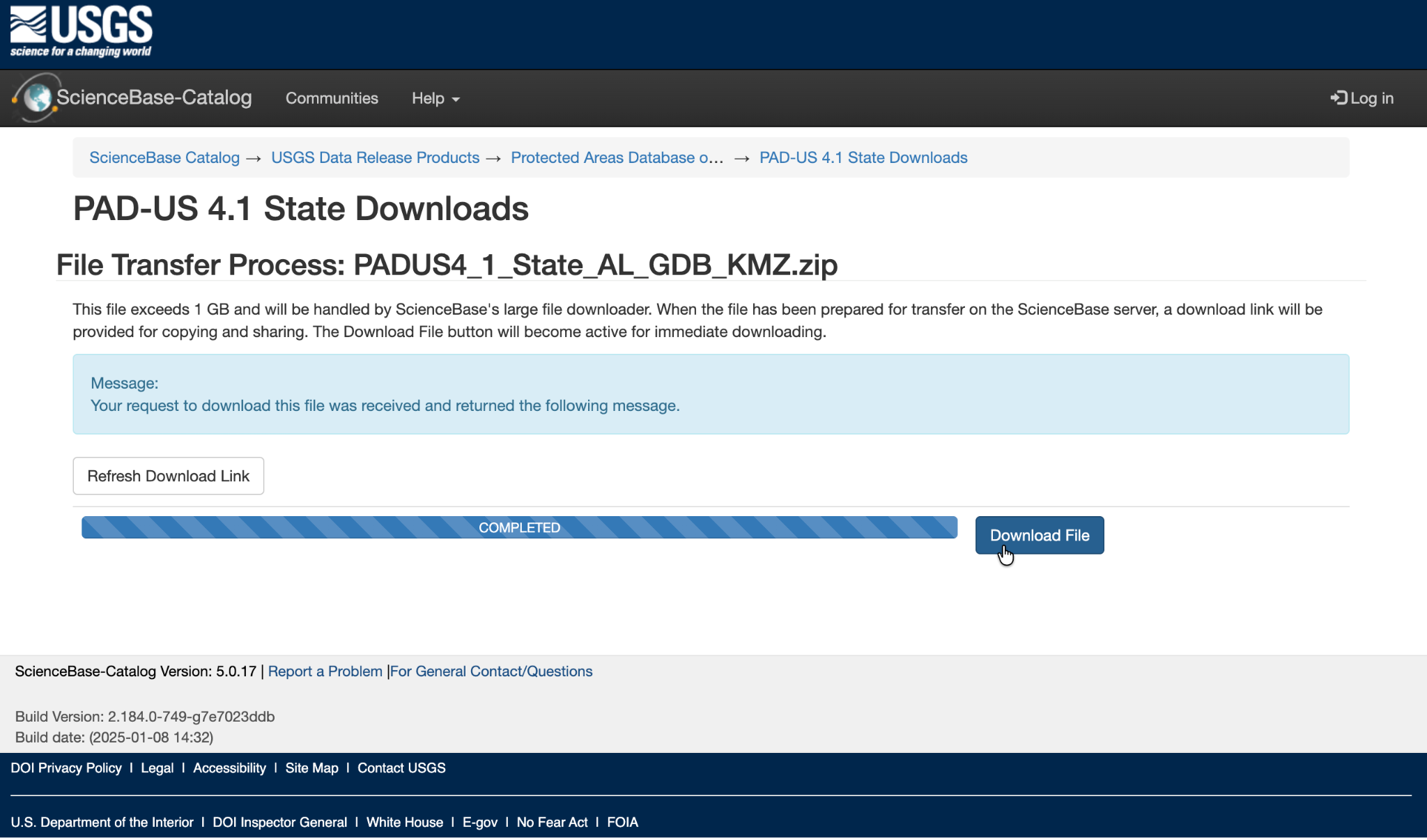
Screenshot: file transfer page with the Download File button.
Step 4: Open Full Download History
The file will start downloading. You can cancel it later if you only need the URL.
In the browser download popup, click Full Download History.
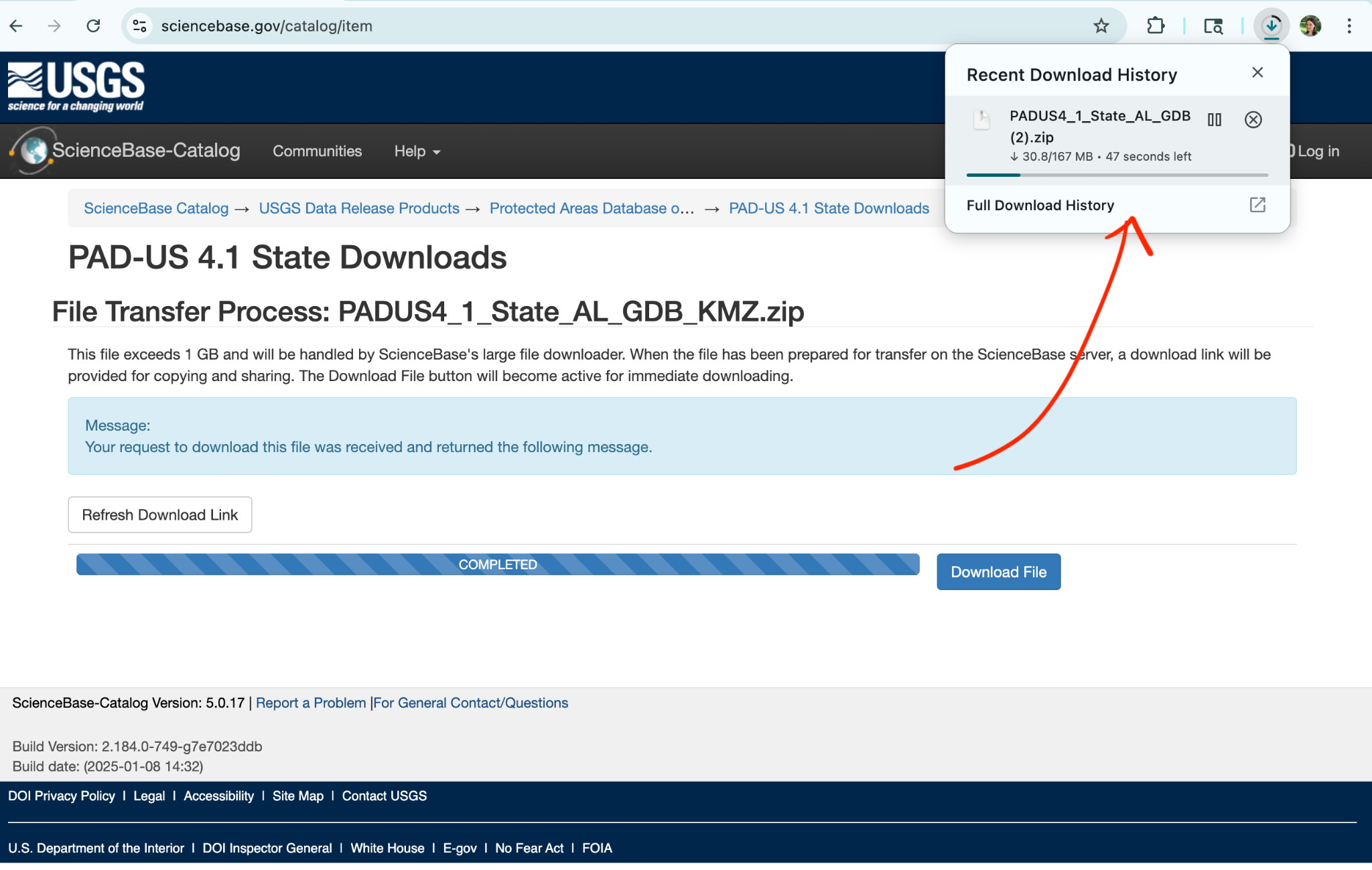
Screenshot: browser download popup with Full Download History.
Step 5: Copy the download URL
In the browser download history page, find the downloaded file.
Click the link button to copy the download URL.
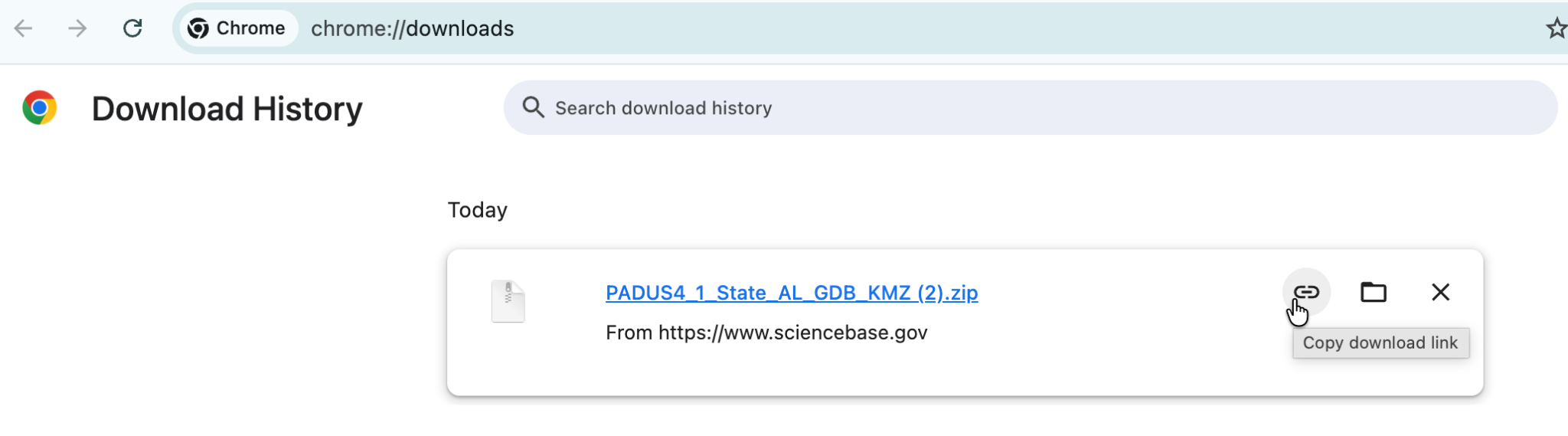
Screenshot: copy download link button in browser download history.
Step 6: Give that download URL to the LLM
That copied URL is the download URL you provide to the LLM.
For this example, the copied URL looks like this:
https://prod-is-usgs-sb-prod-content.s3.amazonaws.com/6759abcfd34edfeb8710a004/PADUS4_1_State_AL_GDB_KMZ.zip?AWSAccessKeyId=AKIAI7K4IX6D4QLARINA&Expires=1777587284&Signature=Ba6VQaZzimHp3XPMfLyN0CvdLqo%3D
Use the URL from your own browser download history, not this example URL, unless you are intentionally reproducing the exact Alabama PAD-US example.
Use the copied direct file URL
The LLM workflow needs the direct file URL, not just the landing page URL. The ScienceBase landing page is useful for humans, but the direct file URL is what allows the workflow to retrieve the file.
These links can expire
Some direct download URLs include temporary access parameters such as expiration times or signatures. If the workflow fails later, repeat the download-history step and copy a fresh URL.